
Table of Contents
- What Payroll Integration With Accounting Platforms Actually Does
- Step 1: Assess System Compatibility and Choose Your Integration Path
- Step 2: Payroll Software Integration With QuickBooks, Gusto, and Other Platforms
- Step 3: Payroll Chart of Accounts Mapping Done Right
- Step 4: Payroll Journal Entries Automation and Validation
- Step 5: The Payroll Reconciliation Process and Exception Handling
- Security, Cost, and Maintenance: What Integration Really Requires
- Conclusion
- Frequently Asked Questions
Last Updated: October 19, 2026
What Payroll Integration With Accounting Platforms Actually Does
Integrating payroll software with accounting platforms is the automated transfer of payroll data, such as wages, tax withholdings, and benefit deductions, directly into your general ledger. NetPEO helps small and mid-sized businesses set up that connection so wage expenses and payroll liabilities land in the right accounts without manual rekeying. Here is the part most guides skip: the integration does not do your account mapping for you.
The Data That Moves Between Systems
Six data types cross the bridge between payroll software and your accounting system:
- Gross earnings by employee, department, and pay type
- Employee deductions, including benefits deductions and tax withholding
- Employer payroll taxes for Social Security, Medicare, and unemployment
When these flow automatically, your financial records stay current and your financial reporting reflects real labor costs.
Step 1: Assess System Compatibility and Choose Your Integration Path
Start by confirming how your payroll software and accounting software can talk to each other. Most pairs offer one of three paths: a built-in connector from the vendor, a third-party integration layer, or a direct API integration. A built-in connector is the simplest and usually the cheapest to maintain. API integration gives you control but demands developer time.
Check three things before committing:
- Sync frequency, meaning real-time, daily, or per pay run
- Field coverage, since some connectors skip employer tax lines
- Support for multiple pay schedules if you run weekly and salaried payroll together
A connector that syncs totals but not department-level detail will break any reporting you build on job costing. Verify field-level coverage before you sign off on the integration setup.
Step 2: Payroll Software Integration With QuickBooks, Gusto, and Other Platforms
Payroll software integration with QuickBooks is the most common pairing for small businesses, and the supplied market data shows why: QuickBooks Payroll offers tight sync into QuickBooks books. Gusto, OnPay, ADP, Paychex, Patriot Payroll, and Rippling all appear in current small-business payroll comparisons, though their specific accounting integrations vary and should be confirmed directly with each vendor.
| Platform | Verified Accounting Link | Best For |
|---|---|---|
| QuickBooks Payroll | Tight QuickBooks sync | Businesses already on QuickBooks |
| Gusto | Payroll-to-accounting use noted | Mixed payroll and accounting stacks |
| Acumatica | Payroll to general ledger | Mid-market ERP users |
| Deel Payroll | Not verified | Enterprise payroll |
Our view: match the payroll tool to your accounting system, not the reverse. Switching accounting platforms to fit a payroll connector is almost never worth the migration pain.
Step 3: Payroll Chart of Accounts Mapping Done Right
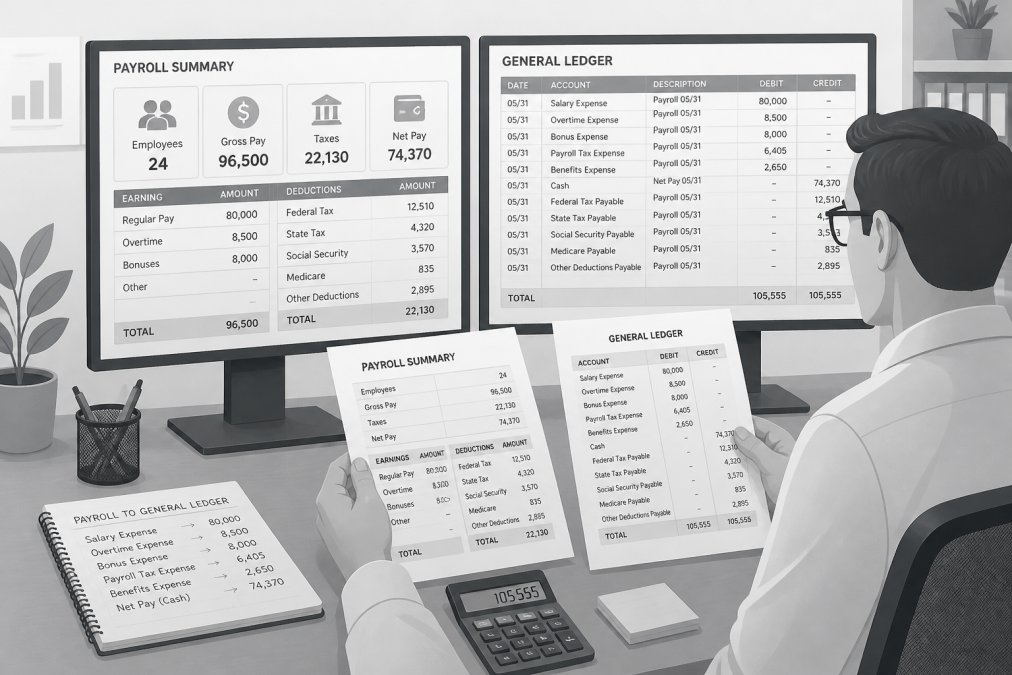
Payroll chart of accounts mapping is the assignment of each payroll data element to a specific general ledger account. Most guides tell you to “map wages to wage expense” and stop there. That advice is not enough to survive a real month-end close. What follows is a worked mapping example you can adapt, plus the field-level rules that prevent the variances nobody warns you about.
A Worked Mapping Example
Assume a simple pay run for one department: $10,000 in gross wages, $1,200 in employee federal income tax withholding, $620 in employee Social Security, $145 in employee Medicare, $400 in employee 401(k) deferrals, $620 in employer Social Security, $145 in employer Medicare, $80 in federal unemployment (FUTA), and $250 in state unemployment (SUTA). A defensible mapping looks like this:
| Payroll Element | Debit Account | Credit Account | Amount |
|---|---|---|---|
| Gross wages | 6100 Wages Expense | , | $10,000 |
| Employee federal income tax | , | 2210 Federal Tax Payable | $1,200 |
| Employee Social Security | , | 2220 Social Security Payable | $620 |
| Employee Medicare | , | 2230 Medicare Payable | $145 |
| Employee 401(k) deferral | , | 2240 401(k) Payable | $400 |
| Employer Social Security | 6310 Employer Payroll Tax Expense | 2220 Social Security Payable | $620 |
| Employer Medicare | 6310 Employer Payroll Tax Expense | 2230 Medicare Payable | $145 |
| Employer FUTA | 6310 Employer Payroll Tax Expense | 2250 FUTA Payable | $80 |
| Employer SUTA | 6310 Employer Payroll Tax Expense | 2260 SUTA Payable | $250 |
| Net pay | , | 1010 Checking (or 2100 Net Pay Clearing) | $7,490 |
Total debits equal $11,635 and total credits equal $11,635. If your integration produces a journal entry where those two figures do not tie, stop before posting.
Field-Level Mapping Rules
- Split wages by department or class if you run job costing. A single wages account hides labor cost by job and forces manual reclassification later.
- Separate employee withholding from employer tax even when both hit the same agency. Employee withholding is a liability funded by the employee’s gross; employer tax is an expense. Pooling them distorts both the P&L and the liability balance.
- Route benefit deductions to liability accounts, not expense. The expense for a 401(k) match belongs in employer benefit expense; the employee deferral is a payable until remitted.
Build the Mapping Document First
Before you touch the software, build a mapping document. List every pay type, deduction, employer contribution, and tax line your payroll produces, then write the target account beside each one. Include the pay type code from the payroll system, because that code, not the display name, is what the connector actually reads. A pay type labeled “Bonus” in the payroll UI may carry a code that routes to regular wages unless you map it explicitly. (Source: verify field-level coverage)
Create one dedicated liability account per tax type rather than pooling them. When a tax payment clears, you can match it to the exact liability line instead of guessing which balance it reduced.
A mapping that is correct at the total level but wrong at the department level will pass your first validation and fail your first job-cost report. Test department splits with a single pay run before you trust the integration for management reporting.
Step 4: Payroll Journal Entries Automation and Validation
Integrating payroll software with accounting platforms replaces manual data entry with automated journal entries, but they still need validation. Run the first two pay cycles in parallel: let the integration post its entries and prepare your old manual entries alongside.
If the numbers match, retire the manual process. If they do not, check the mapping first, since mismatches usually trace back to a pay type routed to the wrong account.
Step 5: The Payroll Reconciliation Process and Exception Handling
The payroll reconciliation process compares what payroll says you owe against what accounting says you recorded. Do it every pay period, not quarterly. Pull the payroll register, pull the general ledger detail for the same period, and tie the two together line by line. The part that actually saves you time is the exception handling and rollback procedure, the mechanics of what to do when the sync produces a duplicate, a missing entry, or an out-of-balance run.
The Three-Way Tie-Out
Reconcile three figures, not two:
- Payroll register total, gross wages, each deduction, each employer tax, and net pay as the payroll system reports them.
- Journal entry total, what the integration posted to the general ledger for that pay run.
- Liability account balances, the running balance in each payable account, which should equal the sum of unremitted liabilities.
If the register and the journal entry agree but the liability balances drift, the problem is a prior-period posting or a payment that was recorded to the wrong liability line. If the register and the journal entry disagree, the problem is in the mapping or the sync itself.
Detecting Duplicates, Missing Entries, and Out-of-Balance Runs
- Duplicates. The most common cause is a re-run after a failed sync. Check for two journal entries with the same pay date and the same reference number. A duplicate usually shows as a liability balance that is exactly double the expected amount.
- Missing entries. A sync that times out mid-run can post the wage lines but skip the employer tax lines. Compare the count of debit lines in the journal entry against the count of mapped elements in your mapping document.
- Out-of-balance runs. If total debits do not equal total credits, do not post. The cause is almost always a rounding rule applied on one side of the entry but not the other, or a pay type mapped to an account that does not exist in the current chart of accounts.
The Rollback Procedure
Document this before you need it, because the moment a bad run posts is not the moment to read vendor documentation.
- Void the imported journal entry in the accounting system rather than editing it. Editing leaves no clean audit trail; voiding preserves the original and its reversal.
- Confirm the reversal posted to the same accounts and period as the original entry.
- Fix the mapping in the integration settings, not in the accounting system.
- Re-run the sync for the affected pay period only, and re-run the three-way tie-out before moving on.
- Log the incident, date, pay period, cause, and fix, so the next person who sees the same pattern recognizes it.
Reconcile per pay run, not per quarter. A small variance caught in week one is a five-minute fix; the same variance caught at year-end is an audit trail problem.
Measuring Whether the Integration Is Working
Track four numbers each period: time to complete reconciliation, number of correcting entries, number of sync failures, and days to close the books. If reconciliation time or correcting entries trend upward, the mapping has drifted, usually because a new pay type or deduction was added without a corresponding account. Review the mapping document whenever payroll adds a pay type, and you will catch most drift before it reaches the general ledger.
Security, Cost, and Maintenance: What Integration Really Requires
Treat the connection as a security boundary. Sensitive employee information crosses between systems, so lock it down:
- Role-based access controls limiting who can edit mapping or post entries
- Unique credentials per integration, never shared logins
- Multi-factor authentication on both platforms
On cost, expect implementation costs for setup and mapping time, plus ongoing maintenance when tax rates, pay types, or account structures change. Pricing for payroll platforms varies widely; confirm current figures with each vendor. This is where a provider assessment helps: NetPEO’s needs assessment identifies which connected systems fit your size and industry, and our services are free to the client.
Conclusion
Payroll integration fails quietly when mapping and reconciliation get skipped, and the cleanup lands on your bookkeeper every month. NetPEO connects you with top-rated payroll providers, runs a needs assessment to match your systems, and helps you reduce compliance liability while freeing up your time. Get started with NetPEO and build a payroll-accounting connection that closes cleanly every period.
Frequently Asked Questions
Can payroll software automatically create accounting journal entries?
Yes. Most payroll platforms generate a journal entry after each pay run that debits wage expenses and credits payroll liabilities, tax withholdings, and benefits deductions. QuickBooks Payroll, for example, syncs directly to QuickBooks so the entry posts without manual keying. The catch is mapping: the payroll system needs to know which general ledger accounts to hit. Set up payroll chart of accounts mapping before your first automated run, then review the first two or three entries line by line to confirm debits and credits land where your bookkeeper expects.
How do you map payroll categories to a chart of accounts?
Start by listing every payroll category your software produces: gross wages, employer taxes, employee tax withholding, benefits deductions, garnishments, and reimbursements. Then assign each to an existing general ledger account, or create new ones if your chart lacks a clean fit. Keep wage expenses separate by department if you report on labor cost. Document the mapping in a shared spreadsheet so anyone running payroll or closing the books sees the same logic. Revisit the map whenever you add a pay type, a new benefit, or a state tax account.
What should you do if a payroll integration fails or a sync posts the wrong amount?
Stop the sync before it repeats. Most platforms let you void or reverse an incorrect journal entry, then correct the source data in payroll and re-run. Check the integration log first: failed connections, expired credentials, and mapping mismatches cause most errors. If the entry already hit the general ledger, post a reversing entry rather than editing history, so your audit trail stays intact. Then run a payroll reconciliation process comparing gross wages, taxes, and net pay between both systems before the next pay run.
Is a direct integration better than an API or middleware connection?
It depends on your stack. A built-in connector, like QuickBooks Payroll syncing to QuickBooks, is the simplest option when both systems come from the same vendor or have a native partnership. An API integration gives you more control over data mapping and sync frequency but usually needs developer time. Middleware sits between platforms that do not talk directly and can handle multi-entity or multi-currency workflows. For a 10 to 50 employee business, a native connector usually wins on cost and maintenance.